Many apps have been created to satisfy the curiosity of knowing what we will be like in a few decades. We've selected four of them to show you in [link/video]. Photos, an older version of himself — and all were checked out in stores before being included on this list.
A word of warning right from the start: classics like Oldify, AgingBooth, and HourFace have been removed from Google Play and are now only available on the App Store. That's why they're not included, and we explain what happened to each one at the end of the text.
4 apps to age your face in photos
All four are available for Android and iPhone and are free to download. The differences lie in the billing model: two display ads, and all sell something within the app.
1. FaceApp
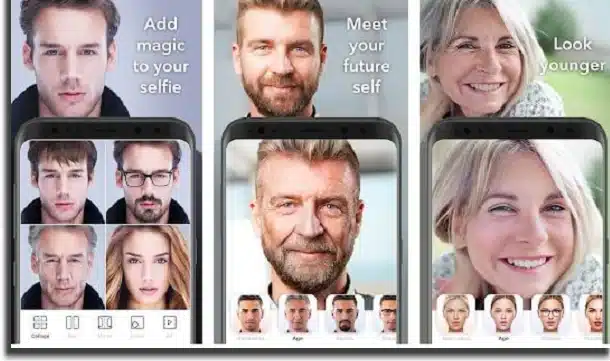
A favorite among those seeking this type of effect, FaceApp converts a regular photo into a much older version of the face, with wrinkles, sagging skin, and gray hair convincingly applied.
The age filter is just one part of the package. The app also shows your younger version, changes your apparent gender, adds a beard, hairstyles, makeup, and a smile, and even creates collages and GIFs with the transformations.
Where to download: Google Play and the App Store, for free. The Play Store listing indicates... in-app purchases and it doesn't display any ads. Many of the filters depend on FaceApp PRO, which is available on the App Store starting at R$ 25.00, with an annual plan at R$ 119.90.
2. FaceLab
FaceLab, from Lyrebird Studio, is the most dedicated to the topic: the store's name itself is "FaceLab: Age, Hair, Beard". You send a selfie and choose how far you want to advance time, with results in a few seconds.
In addition to aging, it allows you to test haircuts, beards, and even a bald version, resulting in good side-by-side comparisons. The files can be saved in high resolution and shared directly on social networks.
Where to download: Google Play and App Store, with free download. The Play Store listing indicates that the app contains advertisements and has in-app purchases. The weekly subscription on the App Store starts at R$ 49.90, so pay attention before accepting the free trial.
3. Old Me
Old Me has a streamlined approach: to simulate an aging face in just a few taps. Simply choose a photo from your gallery or take one on the spot and let the app process the transformation, without complicated menus.
It works best with the face facing forward, well-lit, and without sunglasses. You can also compare the before and after on the same screen, which helps to see what the effect actually changed.
Where to download: Google Play and the App Store, free of charge. The Play Store listing includes warnings that the app contains advertisements and has in-app purchases.
4. Age Your Photo
The idea here is to give you control over your final age. You upload the photo, choose how old you want to look, and the app returns an aged portrait, instead of always applying the same time jump.
Since the processing happens in stages, it's possible to generate multiple ages from the same image and create a timeline of your own face — the most fun aspect of this type of app.
Where to download: Google Play and the App Store, for free. The Play Store listing indicates... in-app purchases and does not display the ad notification. On the App Store, the function to change the age appears as a separate purchase of R$ 4.90.
Oldify, AgingBooth, and HourFace: what has changed?
If you searched for these three names and didn't find anything on Google Play, it wasn't your imagination: none of them are still listed for Android. They remain only on the App Store, so they only work on iPhone and iPad.
- Oldify: It's still on the App Store, but it is paid — It costs R$ 6.90, and also includes in-app purchases. It is no longer a free option, as was stated in older texts.
- Aging Booth: Available for free on the App Store, with no in-app purchases, featuring the same simple interface as always and the gesture of shaking the device to see the original photo.
- HourFace: 3D Aging Photo: Also available for free on the App Store, this app focuses on aging with a three-dimensional effect. The result is improved when the face is viewed from the front, forehead exposed, and with good lighting.
In other words: if you use Android, the four suggestions at the beginning of the text are the way to go. If you use an iPhone, you can still turn to these veteran apps, remembering that Oldify charges for downloads.
Tips for a better result
Regardless of the app chosen, some simple choices significantly change the quality of aging:
- Use a photo with the face facing forward, occupying a good portion of the frame.
- Opt for natural light and avoid harsh shadows on only one side of your face.
- Remove glasses, hats, and anything else covering your forehead or chin area.
- Before accepting a free trial, check the price and subscription renewal details directly on the store's website.
Availability and prices checked in Brazilian stores on August 1, 2026. Did you see any outdated information? Write to contato@moblander.com.
Before deciding, check these points.
- Resolution of the exported file. Some reduce the image size when exporting without a signature. If the photo is for printing, this is a crucial factor.
- Watermark on the free version. This is the most common trick: the app lets you edit for free, but then stamps the logo on it when you save. Check this before investing your time.
- App weight. Full-featured editors can exceed 300 MB. On devices with limited storage, a lightweight app will handle the basics without crashing.
- Preserve the original. Good editors save a copy. Be wary of any app that overwrites the file directly.
What these apps don't do
Every category has a limit, and knowing this one's limit saves time and money by avoiding those who promise more than what's available.
- No app can see through clothes or walls. What exists is simulation — a generated image, not a captured image.
- Beauty filters alter the image; they don't alter the person. It's important to remember this when comparing the result to an unedited photo.
- They don't recover details that don't exist in the file. Increasing the resolution reconstructs pixels by estimation—it doesn't reveal lost information.
- Recovering deleted photos only works on images that haven't been overwritten yet, and the chances of success decrease with each use of the device.
Frequently Asked Questions
Does the photo lose quality when edited?
Each export recompresses the file. Edit once and save, instead of saving after each adjustment.
Is a free editor safe?
Check the permissions requested. A photo editor does not need access to contacts, messages, or microphone.
Can I edit without a watermark for free?
Yes, in several applications, but with limited features. Check beforehand by saving a test image.
Is it possible to recover a deleted photo?
If there's a backup in Google Photos or iCloud, yes. Without a backup, only if the space hasn't been overwritten—and that chance drops quickly.
Is the premium version worth paying for?
It's worthwhile if you edit frequently and need high-resolution export or to remove the watermark. For occasional use, the free version is sufficient.
How to truly take advantage of it.
- Work on a copy. Duplicate the image before editing. Good apps do this automatically, but double-checking prevents losing the original.
- Export at the highest quality available. If you're going to print, look for the high-resolution export option — some free versions reduce the resolution without warning.
- Adjust the light before applying the filter. Exposure, contrast, and shadows first; filter later. In reverse order, the filter amplifies the flaw.
- Save only once. Each export process recompresses the file. Make all the necessary adjustments and export at the end.
Common mistakes that are costly
- Increasing the resolution in the hope of revealing detail — the program estimates pixels, it doesn't retrieve information.
- Discovering the watermark only when exporting, after half an hour of editing.
- Granting access to all photos when the app only needs one.
- Send a photo of a document or a child to an editor who processes it in the cloud.
What the cell phone itself already does.
The phone's built-in gallery editor already handles cropping, light adjustment, object removal, and perspective correction in recent versions of Android and iPhone. For quick adjustments, it solves the problem without installing anything or sending the image externally.