With the popularization of social networks and digital photography, most people have a large amount of photos on their mobile devices. However, many times the photos end up being forgotten, without being appreciated or shared.
But what if you could turn your photos into works of art and impress your friends and followers on social media? This is possible thanks to the various applications currently available.
In this article, we're going to introduce 7 apps that will help you turn your photos into true works of art.
Prism
Prisma, the app of the art gods, is highly acclaimed for its ability to turn photos into works of art. With a library of over 300 filters inspired by famous painters such as Van Gogh and Picasso, this app is highly regarded for its ability to breathe new life into photos.
Thanks to artificial intelligence, Prisma is capable of applying filters to your photos, creating impressive effects that will make your friends and followers admire your creativity.
DeepArt
DeepArt is an application that uses neural networks to turn your photos into works of art. With its innovative technology, this app offers various painting styles such as Impressionism, Expressionism, and Cubism, among others. The results are always surprising and can be easily shared on social media.
artist
Artisto is another app that, in addition to the previously mentioned features, also lets you turn your photos and videos into animated works of art. The application also has several filters inspired by different styles of painting, such as renaissance and pop art. Also, it lets you create looping animations with your photos and videos.
Pikazo
Pikazo uses machine learning algorithms to turn your photos into abstract images. The app lets you choose from a variety of art styles, such as mosaics and patterns, and adjust the intensity of the effect. The result is always unique and surprising.
painnt
Painnt has over 200 filters inspired by famous painters such as Monet and Degas. The application allows you to adjust the intensity of the effect and create compositions with several images. In addition, it has an online community where you can share your creations.
Waterlogue
Waterlogue turns your photos into stunning watercolors. The application has several painting styles and allows you to adjust the intensity of the effect. In addition, it allows you to save images in high resolution and share them on social networks.
frosting
Glaze is an app that turns your photos into glazed ceramics and glass. It has several ceramic styles and allows you to adjust the intensity of the effect. The application also allows you to create compositions with several images and share them on social networks.
Are the apps free?
Some apps are free while others offer paid versions with more features.
How to share the transformed photos on social networks?
All apps let you share the transformed photos directly on social media such as Instagram, Facebook and Twitter. Just select the sharing option within the app itself and choose the desired social network.
Are the apps easy to use?
Yes, all apps are very intuitive and easy to use. Most of them use artificial intelligence or neural networks to apply the effects, which means that the user does not need to have advanced knowledge in image editing to obtain impressive results.
Conclusion
Turning your photos into works of art has never been easier. With the help of the applications that we present, you can create stunning effects and surprise your friends and followers on social networks. Whether you want to add an artistic touch to your travel photos, or simply create unique and original images, these apps will help you unleash your creativity and explore new possibilities.
Try the 7 apps to turn your photos into works of art right now and discover a world of possibilities!
See too:
- Mobile makeup apps
- 4 amazing apps to age you in photos!
- Application that changes the color of the eyes – How to download for free
- Apps to customize cars: 3 good options
Before deciding, check these points.
- Resolution of the exported file. Some reduce the image size when exporting without a signature. If the photo is for printing, this is a crucial factor.
- Watermark on the free version. This is the most common trick: the app lets you edit for free, but then stamps the logo on it when you save. Check this before investing your time.
- App weight. Full-featured editors can exceed 300 MB. On devices with limited storage, a lightweight app will handle the basics without crashing.
- Preserve the original. Good editors save a copy. Be wary of any app that overwrites the file directly.
What these apps don't do
Every category has a limit, and knowing this one's limit saves time and money by avoiding those who promise more than what's available.
- No app can see through clothes or walls. What exists is simulation — a generated image, not a captured image.
- Beauty filters alter the image; they don't alter the person. It's important to remember this when comparing the result to an unedited photo.
- They don't recover details that don't exist in the file. Increasing the resolution reconstructs pixels by estimation—it doesn't reveal lost information.
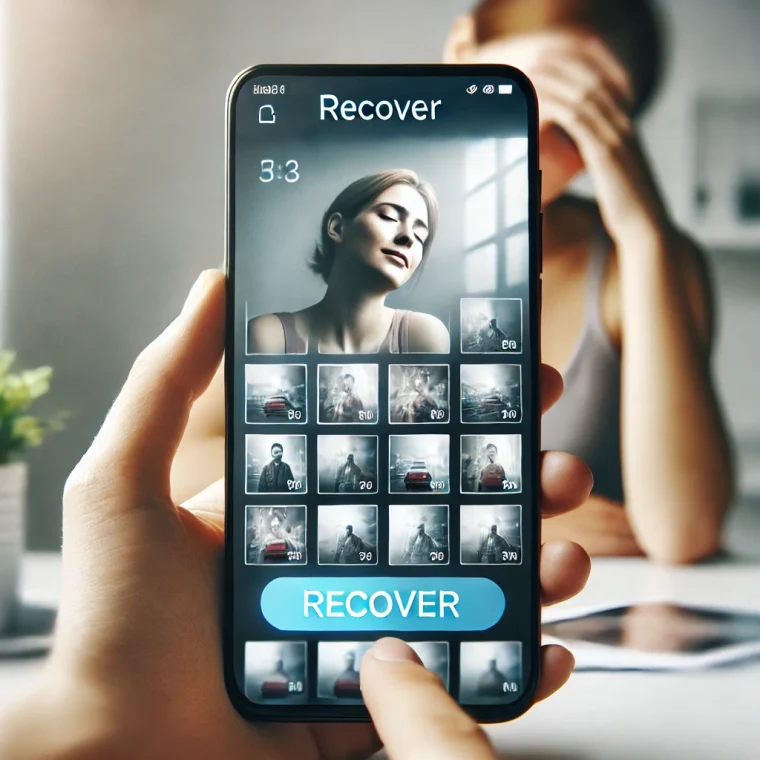
- Recovering deleted photos only works on images that haven't been overwritten yet, and the chances of success decrease with each use of the device.
Frequently Asked Questions
Is it possible to recover a deleted photo?
If there's a backup in Google Photos or iCloud, yes. Without a backup, only if the space hasn't been overwritten—and that chance drops quickly.
Is the premium version worth paying for?
It's worthwhile if you edit frequently and need high-resolution export or to remove the watermark. For occasional use, the free version is sufficient.
Will my photos go to the cloud?
It depends on the app. Those that do everything on the device work offline; those that use a server send the image externally.
Which format should I save it in?
JPEG for general use, PNG when there is transparency or text, and the original format when archiving.
Does the photo lose quality when edited?
Each export recompresses the file. Edit once and save, instead of saving after each adjustment.
How to truly take advantage of it.
- Work on a copy. Duplicate the image before editing. Good apps do this automatically, but double-checking prevents losing the original.
- Export at the highest quality available. If you're going to print, look for the high-resolution export option — some free versions reduce the resolution without warning.
- Adjust the light before applying the filter. Exposure, contrast, and shadows first; filter later. In reverse order, the filter amplifies the flaw.
- Save only once. Each export process recompresses the file. Make all the necessary adjustments and export at the end.
Common mistakes that are costly
- Increasing the resolution in the hope of revealing detail — the program estimates pixels, it doesn't retrieve information.
- Discovering the watermark only when exporting, after half an hour of editing.
- Granting access to all photos when the app only needs one.
- Send a photo of a document or a child to an editor who processes it in the cloud.
What the cell phone itself already does.
The phone's built-in gallery editor already handles cropping, light adjustment, object removal, and perspective correction in recent versions of Android and iPhone. For quick adjustments, it solves the problem without installing anything or sending the image externally.