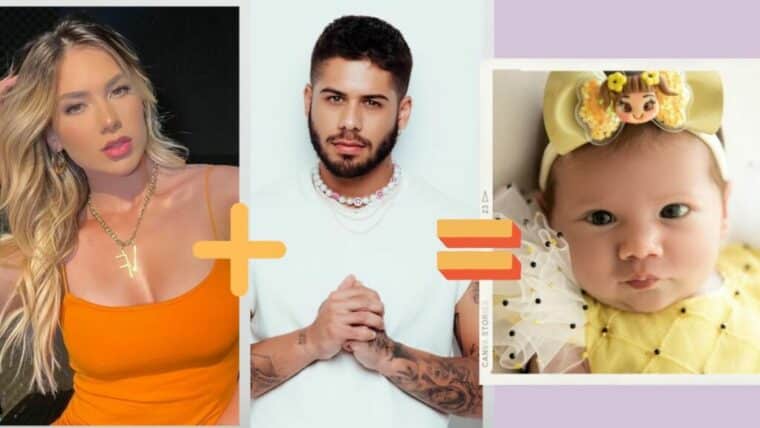
First and foremost, the important warning: the Apps that show "the face of your future child" are a joke.. What they do is blend the features of two photos using artificial intelligence filters and return a realistic image. There is no genetic prediction, no test, and no scientific basis for the result. It's entertainment to laugh with your partner and share in the family group chat—nothing more than that.
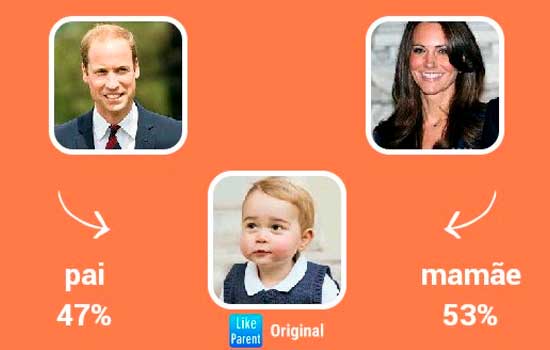
Once that combination is in place, you can have a lot of fun. You've probably seen these kinds of edits circulating on social media, almost always accompanied by a "similarity" percentage that generates a lot of comments. This percentage is also decorative: it comes from the filter itself, not from any DNA analysis.
Below are three apps that perform this simulation, all available on the Play Store and free to start. Each entry explains what the app actually delivers.
Create a Baby: AI Predictor
It's the most straightforward on the list. You send a photo of yourself and one of your partner, choose the baby's gender, and the app creates a baby face by combining features from both images. You can also play around with it alone, using a photo of a friend or a celebrity.
What he actually is: It's a montage generator. The face that appears on the screen is created by an AI filter from the submitted photos and has no predictive value. Changing the photo completely alters the result—which already shows how random it is.
Where to download: free for android, with ads and optional in-app purchases.
What will my child be like?
This one is entirely in Portuguese and has the simplest interface of the three options: you tap on two frames, upload the photos, and receive the collage in a few seconds. The result can be saved to the gallery or sent directly to WhatsApp and Instagram.
What he actually is: This is a photo montage game. The app itself presents itself as fun, and that's how the result should be viewed. No real characteristics of the child can be deduced from this image.
Where to download: free for android.
Future Baby: AI Baby Generator
Future Baby gives you more control over the outcome: in addition to the two photos, you choose the baby's gender, skin tone, and apparent age in the montage. It also keeps a history of the generated images, which is helpful when you want to compare several attempts.
What he actually is: An AI-powered image editor. Since you define your own skin, hair, and eyes, it's clear that the "prediction" is your choice, not a hereditary calculation.
Where to download: free for android. On the iPhone, an equivalent alternative is the AI Baby Generator – BabyS, also free.
How to get better assemblies
- Use photos with good resolution and a light background, without harsh shadows on the face;
- The face must be facing forward and without glasses, a hat, or a hand covering any part of the face;
- Recent photos work better because the filter identifies more points on the face;
- Didn't like it? Change the photo and generate it again. The result changes with each attempt — and that's precisely why it can't be taken seriously.
Take care with your photos.
These apps send images to servers on the internet for editing. Before using them, it's worth reading the privacy policy and avoiding sending photos of children or people who haven't given their permission. If the app offers the option to delete the images afterward, use it.
In short
The three options above are free to start with and are available on... Google Play Store, There are equivalent apps on the App Store. Choose one, test it with whomever you want, and share the result—as long as everyone knows that the face on the screen is a filter, not a preview of your future child. A child's real appearance depends on genetics, and no app can predict that.
How to choose between the options
- Preserve the original. Good editors save a copy. Be wary of any app that overwrites the file directly.
- Where do your images go?. Tools that use cloud processing upload the photo. Read the policy before sending an image of a document or a child.
- It works without internet. Editors who process photos on their own device work offline. Those that rely on a server do not—and send your photo externally.
- Resolution of the exported file. Some reduce the image size when exporting without a signature. If the photo is for printing, this is a crucial factor.
What these apps don't do
This is the part that almost no list mentions, and it's precisely what separates expectation from result.
- They don't remove watermarks from third-party photos. Besides not working properly, using the image without a license is a copyright violation.
- They don't recover details that don't exist in the file. Increasing the resolution reconstructs pixels by estimation—it doesn't reveal lost information.
- No app can see through clothes or walls. What exists is simulation — a generated image, not a captured image.
- Recovering deleted photos only works on images that haven't been overwritten yet, and the chances of success decrease with each use of the device.
Frequently Asked Questions
Is a free editor safe?
Check the permissions requested. A photo editor does not need access to contacts, messages, or microphone.
Is it possible to recover a deleted photo?
If there's a backup in Google Photos or iCloud, yes. Without a backup, only if the space hasn't been overwritten—and that chance drops quickly.
Will my photos go to the cloud?
It depends on the app. Those that do everything on the device work offline; those that use a server send the image externally.
Does the photo lose quality when edited?
Each export recompresses the file. Edit once and save, instead of saving after each adjustment.
Can I edit without a watermark for free?
Yes, in several applications, but with limited features. Check beforehand by saving a test image.
How to use it in practice
- Crop with the purpose of taking into account where the photo will end up. Square and vertical 4:5 for social media, 16:9 for screen. Crop after exporting and recompress again.
- Adjust the light before applying the filter. Exposure, contrast, and shadows first; filter later. In reverse order, the filter amplifies the flaw.
- Work on a copy. Duplicate the image before editing. Good apps do this automatically, but double-checking prevents losing the original.
- Save only once. Each export process recompresses the file. Make all the necessary adjustments and export at the end.
What goes wrong most often?
- Saving after each adjustment and watching the image lose sharpness without understanding why.
- Granting access to all photos when the app only needs one.
- Increasing the resolution in the hope of revealing detail — the program estimates pixels, it doesn't retrieve information.
- Send a photo of a document or a child to an editor who processes it in the cloud.
What the cell phone itself already does.
The phone's built-in gallery editor already handles cropping, light adjustment, object removal, and perspective correction in recent versions of Android and iPhone. For quick adjustments, it solves the problem without installing anything or sending the image externally.