If you want to give your car a new look, but first want to see how it would turn out, it's worth checking out the best options. apps to customize cars. Testing the idea on screen costs nothing and avoids spending money on a color or wheels that, in practice, don't match the vehicle.
There are two types of useful applications here. The first is the 3D simulator, which already includes ready-made car models for you to change wheels, paint, height, and accessories. The second is the image editor, where you start with a photo of your own car and change the color and details—the result is more faithful, but it takes a little more work.
The three apps The links below are available in official app stores, have versions for Android and iPhone, and are free to download — all with optional paid features within the app. None of them will actually modify your car, of course: they're just there to help you decide before taking your vehicle to the mechanic.
What are the best apps to customize cars?
3DTuning
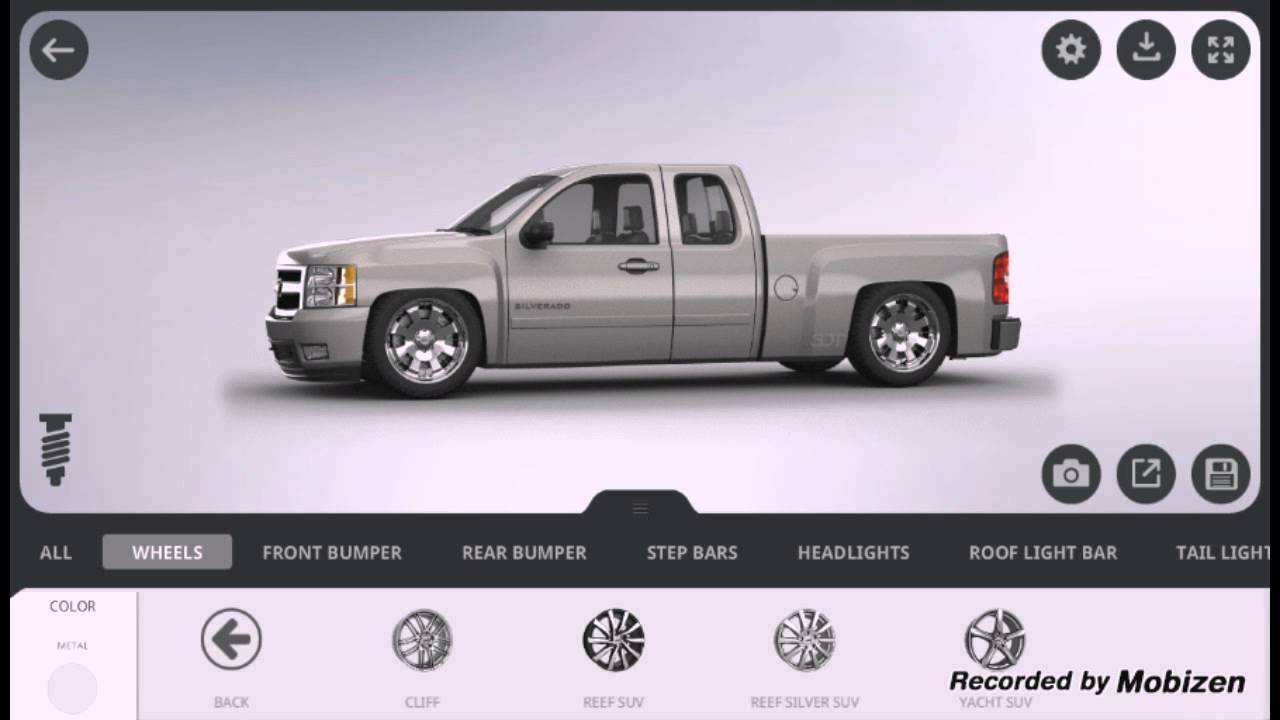
O 3DTuning It's the most straightforward option for those who want to visualize customization. It features a large library of 3D models — passenger cars, sports cars, pickup trucks, and SUVs — and lets you rotate the vehicle at any angle while applying changes.
You can change the paint color and finish, change wheels and tires, lower or raise the suspension, apply spoilers, bumpers, decals, and window tint. It's practically a tuning shop on screen, and you can redo it as many times as you want until you get the look you like.
The app is available on Android via Google Play, and on iPhone and iPad via the App Store. It's free to download, with optional in-app purchases to unlock extra items. One caveat: since the collection consists of generic models, not every car sold in Brazil is included—in those cases, choose the most similar model.
picsart
O picsart It's a complete image editor and solves what the simulator doesn't: working on a photo of your real car. You photograph the vehicle, crop the area you want to change, and apply a different color, a different shade of glass, or a sticker.
It has brush selection, layers, brightness and saturation adjustment, and a large collection of stickers and textures. To change the body color, you just select the body and adjust the hue — it gives a very convincing result with just a few minutes of practice.
It's available for Android and iPhone, and is free to download. Many features work without paying, but some filters and tools require a subscription, which is optional and clearly indicated within the app.
Photoshop Express
O Photoshop Express, Adobe Photoshop is the mobile version of the world's most popular editor. It's simpler than the desktop version of Photoshop, and that simplicity is what helps: the cropping, color adjustment, and background removal tools are just a tap away.
To simulate the modification to the car, the workflow is similar to Picsart: open the photo, isolate the bodywork, and adjust the color and saturation. You can also clean up the background of the image and highlight the car, which is useful if you want to show the idea to the body shop or the auto parts store.
The app is free to download on Android and iPhone. Some advanced features require an Adobe account with a paid plan, but the essentials for this fun car visualization experience work in the free version.
Tips for achieving a convincing result
Photograph the car in daylight, from the side and about three meters away, avoiding strong shadows on the bodywork. Photos taken against the sun or with very strong reflections will hinder the cutout and make the new paint look like a poorly applied sticker.
When changing the color, adjust the hue and saturation instead of painting over them. This way, the original reflections and shadows remain, and that's what makes the eye accept the result. And remember that the color on the phone screen is never exactly the same as the actual wrap or paint job—take the image as a reference, not as a promise.
Like to know more about the best apps to customize carsSo be sure to check out the other articles on the blog, I have lots more news for you!
Check also:
See 5 apps to play guitar at home for Android
Simulate wall painting at home by cell phone
Memory full? Check out 3 Apps to clean your cell phone
How to choose between the options
- It works offline. Many of these utilities don't require internet access. If an app requires a connection for a local task, you should be suspicious.
- Size and memory usage. Utility applications should be lightweight. Those that exceed a few hundred megabytes often contain advertisements and trackers.
- Permissions that the application requests. It's the quickest test of reliability. A flashlight app that asks for contacts and location doesn't need that to work.
- Does the system already do that?. Android and iOS both come with built-in flashlight, recorder, document scanner, meter, and QR code reader. It's worth checking before installing yet another app.
What these apps don't do
This is the part that almost no list mentions, and it's precisely what separates expectation from result.
- They are not a substitute for professional equipment. Cell phone sensors are for estimation, not for technically precise measurements.
- Apps that promise impossible functions are often advertising platforms, and some request permissions they shouldn't.
- Features that rely on missing hardware won't work via software. Without the sensor, no application can solve the problem.
- No app actually increases battery capacity — what you can do is reduce consumption by turning off features.
Frequently Asked Questions
How do I know if an app is trustworthy?
Look at the developer, number of reviews, date of last update, and permissions requested. Those four together say a lot.
Does a cleaning app improve performance?
A little and for a short time. The real gain comes from uninstalling what you don't use and freeing up storage space.
Are these apps safe?
Check the permissions and the number of reviews. Any utility that requests access to contacts, messages, or accessibility without a clear reason should be avoided.
Does it consume a lot of battery?
It depends on what's running in the background. Check the usage per app in the settings and restrict anything that's excessive.
Do I have to pay to use it?
In most utilities, no. The free version with ads works fine, and the paid version is for removing ads.
How to use it in practice
- Clear the cache of larger applications. You can do it app by app in the settings, without installing anything, and without losing your login or settings.
- See what takes up space before installing a cleaner. In Settings › Storage, the system itself shows the breakdown by type. Almost always the culprits are video and social media cache.
- Restart before concluding that it's slow. Much of the slowness disappears with a restart, without needing any application.
- Move photos and videos to the cloud. After confirming the backup, release the local copy. It usually returns several gigabytes.
What goes wrong most often?
- Install three utilities that do the same thing, all running in the background.
- Trusting an app that promises functionality without having the corresponding sensor on the device.
- Deleting an application folder through the file manager can result in lost data that cannot be recovered.
- Granting accessibility permission to a utility that doesn't need it.
Before installing: what's already on the device
Android and iPhone already include features like a flashlight, voice recorder, document scanning, QR code reader, ruler, compass, level, and screen recording. Before installing, it's worth checking the settings – many people install what they already have.