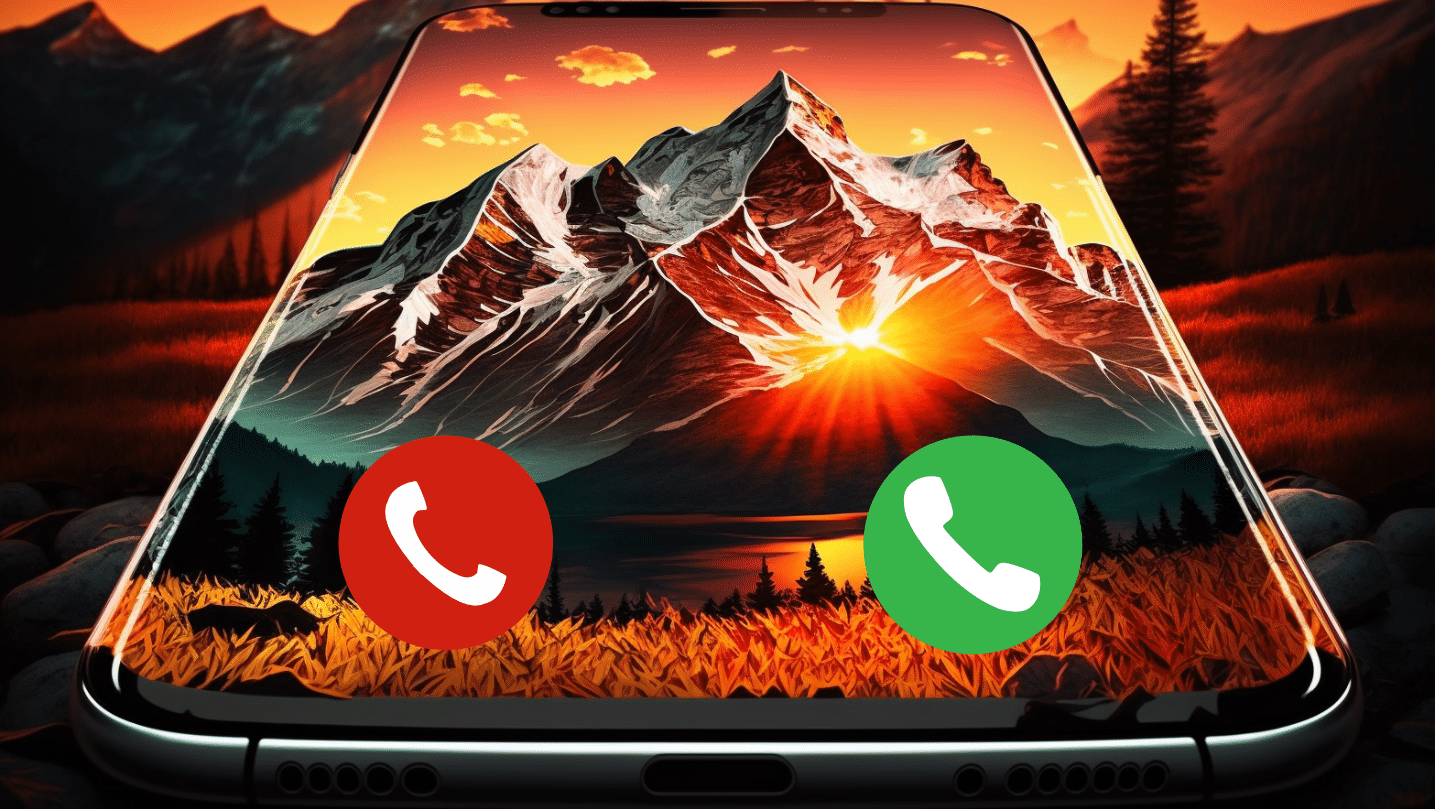
The call screen is one of the first things we see when we receive a call, so it's important that it be customized according to our personal taste. But luckily, nowadays there are many apps to customize your cell phone call screen in a few clicks.
Also, customizing the call screen can be a way to make calls more interesting and fun.
In this article, we're going to introduce the best apps to customize your phone's screen.
The best apps to customize your call screen
Zedge
This is one of the most popular apps for customizing screens including call screen. Zedge offers a wide variety of wallpapers, ringtones and alerts to choose from.
Also, the app allows you to create your own ringtones playlist and use your own images as wallpaper.
ringtone maker
This app lets you create your own ringtones from music stored on your device.
Also, Ringtone Maker lets you cut the music to get the desired snippet as a ringtone.
Available to android
Call Screen Customizer
With Call Screen Customizer, you can change the look of your call screen with images, videos, animations and even texts.
The app offers an easy-to-use interface and a huge selection of themes to choose from.
Available to android
How to customize call screen with mentioned apps
To customize the call screen with apps, just follow these steps:
- Download the desired app from your device's app store.
- Choose the wallpaper, ringtone or other element that you want to use on your call screen.
- Apply the desired settings.
- Ready! Now your mobile call screen is customized.
Tips for choosing the best apps to customize your call screen
- Check user ratings and comments: Before downloading an app, it is important to check user ratings and comments to ensure that the app is reliable and provides the desired functionality.
- Choose apps with a wide selection of options: Choose apps that offer a wide selection of wallpapers, ringtones and other elements to customize your call screen.
- Make sure the app is compatible with your device: Make sure the app is compatible with your device's operating system before downloading it.
FAQ for apps to customize call screen
- Is it possible to customize my call screen without downloading apps? Yes, it is possible to customize the call screen without downloading apps, but it usually requires more steps and complex configurations. Apps for customizing the call screen make the process easy and offer a wide selection of options.
- Are the apps to customize the call screen free? Some apps are free while others can be paid for. It's important to check the pricing information before downloading the app.
- Does customizing the call screen affect my device's performance? No, customizing the call screen generally does not affect device performance unless the app used is poorly developed and has performance issues.
See too:
- Customize your loading screen with these apps
- Transform your phone's lock screen with these 5 amazing apps
- The Best Free GPS to Use Without Internet
Conclusion
Call screen customization is a great way to make calls even more interesting and fun. With the wide variety of apps available, it's easy to choose the best app to do this personalization on your device.
Check user ratings and comments, choose apps from a wide selection of options, and check compatibility with your device before downloading them. Customize the call screen with images, ringtones or other elements to make calls even more fun and personal.
Also, make sure the app is compatible with your device and has good reviews to ensure you have a satisfying experience. Customizing your call screen with apps is a great way to express your personality and make calling more fun.
Download the best apps now and customize your call screen today!
Before deciding, check these points.
- Permissions requested. An app should only request what it needs to function. Requests for access to contacts, messages, or accessibility without reason are a red flag.
- What the app actually does. Compare the description on the store page with recent reviews. The difference between the two often reveals what the advertisement omits.
- It works offline. If the task is local, requiring a connection means that your data is being sent to a server.
- Last updated and supported. An application without a recent update tends to break with the next system version.
What these apps don't do
Every category has a limit, and knowing this one's limit saves time and money by avoiding those who promise more than what's available.
- They can't do what the device's hardware doesn't allow. A feature without a corresponding sensor doesn't exist in software.
- The free version often limits exports, applies a watermark, or restricts the number of uses per day.
- A high rating in the store doesn't guarantee quality: it's worth reading recent, negative reviews.
- An app that promises impossible results usually exists only to display advertising.
How to truly take advantage of it.
- Review your consumption after one week. In the settings, view battery and data usage by app and restrict any that are high.
- Adjust the notifications on the first day. Leaving everything plugged in is the most common reason for uninstallation in the first week.
- Check what the app asks for during installation. Compare the permissions with what it actually does. It's the quickest test of trustworthiness.
- Check if it works offline. If the task is local but still requires a connection, your data is being sent to a server.
Common mistakes that are costly
- Installing multiple applications that do the same thing, all running in the background.
- Granting access to contacts, messages, or accessibility without a clear reason.
- Ignore the fact that the free version limits exports or applies a watermark.
- Choosing based on average rating without reading recent negative reviews.
The alternative that is already included in the system
It's worth opening the search in your phone's settings before installing: Android and iPhone already have several built-in functions, and the native app usually consumes less battery and doesn't ask for any permissions beyond what's necessary.
Why does this category require such stringent permissions?
Drawing a new screen on top of an ongoing call is not a random visual effect. The application needs to intercept a system event and assume a function that, by default, belongs to Android itself.
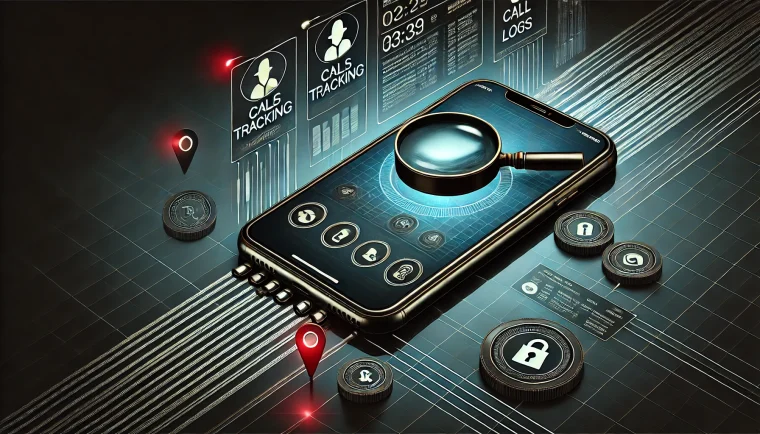
Hence the list of access points that appears on the first page. Four of them are high-powered:
- Overlay on other applications: authorizes the app to draw over any screen, including screens of apps that are not its own.
- Be the default phone app or manage calls: puts the app in control of answering, rejecting, and dialing.
- ContactsTo display the name and photo of the caller.
- Call logTo create a history within the app itself.
Each item is justifiable in isolation. Taken together, they reveal to an unknown developer who you know, who you talk to, what time you talk, and what appears on your screen at that moment.
This is what sets this category apart from a wallpaper app. The required processing power is significant, and the benefit is purely aesthetic.
Overlapping is the same technique used in bank fraud.
Overlaying other applications is the permission that makes a bubble or window float on top of anything. It is also the central technique of banking trojans on Android: the program detects that you have opened the banking application and draws an identical fake screen on top, capturing your password and verification code.
This doesn't mean that all screen-to-call apps are malicious. It means that this specific permission requires careful consideration before tapping "allow.".
Android treats this access as special and places it outside the common list of permissions, in a separate menu, precisely because of the risk. It is never granted by a distracted touch: the system takes you to a dedicated screen.
An application installed via a file downloaded outside the official store, requesting overlay and accessibility features, is exactly the scenario described in the system's security warnings. Accessibility allows for reading the screen content and simulating touches, but it has no function in customizing the appearance of a call.
Switching to a default dialer is a bigger decision than it seems.
To reliably control the call screen, many apps request to be the default phone app. This is different from granting a one-time permission.
From that moment on, every incoming and outgoing call goes through a third-party application. It sees the caller's number, the duration of each conversation, the complete call history, and decides what appears on the screen at the moment of the call.
The change also alters things you might use without thinking: the phonebook that opens when dialing, blocking unwanted numbers, the system's caller ID, and, on some devices, call recording.
If the app stops updating after a major Android update, it's the phone that breaks, not a decorative item.
The side effects that appear after a few days.
The reports are repeated because the cause is structural, not a defect in a specific app:
- The call takes a while to appear on the screen because the app needs to be woken up before drawing.
- The call screen is frozen and does not respond to the answer gesture.
- Duplicate notification, one from the system and another from the app.
- Conflict with the manufacturer's caller ID, with two screens competing for the same space.
- A personalized touch that simply doesn't ring.
The root of much of this is energy conservation. To avoid dropping calls, the app needs to run in the background and stay out of battery optimization. Devices with aggressive management end the process anyway, and the customized screen disappears without warning.
Keeping an app out of optimization comes at a cost. It remains active all the time, and being active consumes battery even when no one is using it.
There's also the business model. On-screen ads are common in this category and appear at the worst possible time: with someone talking on the other end of the line, while you're looking for the hang-up button.
Where to review and how to go back.
Reversing is quick, as long as it's done in the right order:
- Settings, apps, special app access, display over other apps. Scroll through the list and turn off those that don't need it.
- Settings, apps, default apps, phone. Return the device to its original dialer.
- Contact and call log permissions. Revoke permissions for those you no longer use.
- Battery. Return the app to power optimization mode.
- Uninstall last, after everything has been restored to its default settings.
Once this is done, the call screen reverts to the system format. This format offers more than many people imagine at no cost: a large contact photo when the saved image is in high resolution, a different ringtone for each contact, a vibration pattern for each contact, number blocking, and Do Not Disturb mode except for favorites and repeated calls from the same number.
The final criterion can be summed up in one sentence. If the application requests something unrelated to designing a screen, such as SMS, location, camera, or accessibility, the cost outweighs the visual gain.