Choosing the paint color for your home can become a daunting task. You could spend hours in the paint section comparing swatches and trying to find the perfect match. Fortunately, there are now apps to change wall color that can help you.
And what's better, these apps to change wall color are free and compatible with Android and Apple. Therefore, to help you understand more about the apps to change wall color, I prepared today's article on the subject. Interested in finding out more? So follow with me right now!
What apps to change the wall color?
Color Snap
The app includes a color explorer function that will allow you to search for a specific shade by name, number or color family.
The color matching function lets you take a photo or select an existing one from your library, and the app matches that color with an existing one.
A notable detail is that the application can show different color matching results for the same swatch.
Of course, when it comes to very similar colors, it's best to paint a small corner of the wall and see the actual paint color before making the purchase, as natural lighting and time of day greatly influence color perception.
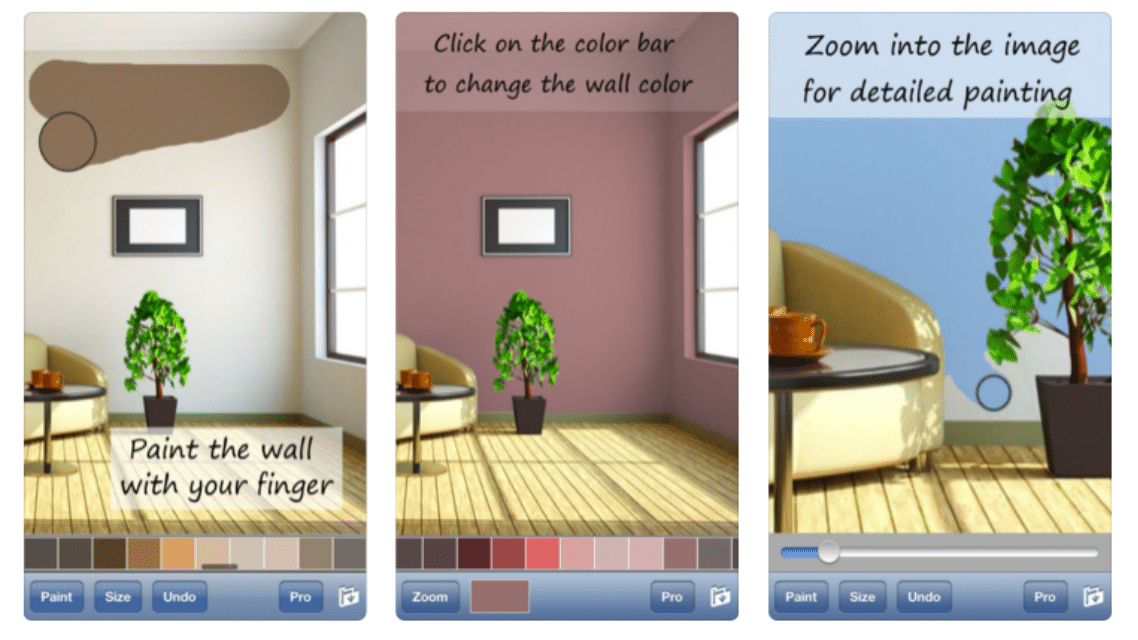
The display function of application lets you paint virtually a handful of rooms just by clicking on a color and then clicking on the wall where you'd like to see the color.
paint my room
Paint My Room is the only app on our list that isn't tied to a big painting company, but is for exploring.
You can take or upload an existing photo of the space you are going to paint, select the brand and range of colors, and virtually paint it.
The “paint” function isn't very ergonomic because you have to use your finger to spread the color, which complicates precision, or use the fill function, which also has a hard time staying within the lines.
When trying to paint a picture of a kitchen, for example, it may cover objects and furniture and not exactly paint the wall area.
Of course, this function is designed so that the user has an idea of how a color will look and that he can focus on the details later, but if you don't have an empty room or a very precise pulse, it will be difficult to choose the color.
color match
While it's not exactly a wall color changer app, it might be a good idea to download it.
Users can upload photos and receive advice from a color consultant via live video, audio or email. Color Consultation's online tools also include how-to videos to paint like a pro.
It is ideal for those who want to explore different ways to paint the house by themselves.
Like to know more about the apps to change wall color? So be sure to follow the other articles on the blog, I have many other news for you!
See too:
Application to measure pressure: everything you need to know!
Free Online Automakeup Course – Learn to Do
Apps to make videos with photos and music
How to choose between the options
- Billing model. Check if it's free with ads, a one-time payment, or a subscription. Subscriptions for simple tasks rarely make sense.
- Update frequency. An app that hasn't been updated in over a year is likely to break with the next system version.
- It works offline. Many of these utilities don't require internet access. If an app requires a connection for a local task, you should be suspicious.
- Size and memory usage. Utility applications should be lightweight. Those that exceed a few hundred megabytes often contain advertisements and trackers.
What these apps don't do
This is the part that almost no list mentions, and it's precisely what separates expectation from result.
- Features that rely on missing hardware won't work via software. Without the sensor, no application can solve the problem.
- No app actually increases battery capacity — what you can do is reduce consumption by turning off features.
- Cleaning apps don't permanently speed up your device: Android already manages memory on its own.
- They are not a substitute for professional equipment. Cell phone sensors are for estimation, not for technically precise measurements.
Frequently Asked Questions
Are these apps safe?
Check the permissions and the number of reviews. Any utility that requests access to contacts, messages, or accessibility without a clear reason should be avoided.
How do I know if an app is trustworthy?
Look at the developer, number of reviews, date of last update, and permissions requested. Those four together say a lot.
Doesn't the cell phone already do that automatically?
It often does. Flashlight, recorder, document scanning, ruler, and QR code reader are native features in recent versions.
Does it consume a lot of battery?
It depends on what's running in the background. Check the usage per app in the settings and restrict anything that's excessive.
Does a cleaning app improve performance?
A little and for a short time. The real gain comes from uninstalling what you don't use and freeing up storage space.
How to use it in practice
- Review your consumption after one week. In the settings, view battery and data usage by app and restrict any that are high.
- Check if it works offline. If the task is local but still requires a connection, your data is being sent to a server.
- Adjust the notifications on the first day. Leaving everything plugged in is the most common reason for uninstallation in the first week.
- Try the free version before you pay. Check if the feature you want is outside the free plan—it usually is.
What goes wrong most often?
- Installing multiple applications that do the same thing, all running in the background.
- Choosing based on average rating without reading recent negative reviews.
- Granting access to contacts, messages, or accessibility without a clear reason.
- Believing in a feature that the device's hardware does not support.
What the cell phone itself already does.
It's worth opening the search in your phone's settings before installing: Android and iPhone already have several built-in functions, and the native app usually consumes less battery and doesn't ask for any permissions beyond what's necessary.
How does the app find out where the wall is?
Before painting anything, the program needs to separate the wall from the rest of the image. This step is called segmentation: the software classifies each pixel of the photo as either a wall or a non-wall.
The decision stems from color patterns, surface continuity, and straight lines. Large, uniform, and vertical areas have a high chance of being classified as walls.
Where the scene is clean, it works well. Where the scene has detail, it starts to go wrong, and the mistakes always follow the same pattern.
- Picture frame and border: the outline often bleeds through, and the paint seeps onto the edge of the object.
- Baseboard and door trim: because they are continuous strips in the same orientation, they are included along with the wall.
- Switch and socket: too small for the cutout, they disappear under the paint.
- Shadow and dark corner: as the classification uses color, the shadow area sometimes gets left out and remains in the old color.
- A piece of furniture leaning against the wall: the boundary becomes undefined and the paint runs down the surface.
A front-facing photo, with an unobstructed wall and even lighting, reduces these errors.
Painting pixels erases the wall you have.
After identifying the area, the application changes the color of those pixels. It's painting over an image, and an image has no relief.
A real wall has texture. Marks from plaster, drywall joints, uneven plaster, roller texture from previous painting, a small patch near the light switch. The simulation flattens all of that into a perfect, flat surface.
The problem is that the chosen color changes when these imperfections appear. Dark colors and surfaces that reflect light reveal the undulation that the light wall was hiding. The simulation never shows this effect because it doesn't know that the relief exists.
The same applies to the wall that has an uneven shadow in the photo. On the screen, the color appears uniform; in the room, the same paint changes appearance from the corner to the middle of the wall.
Three technical reasons why the color might not match.
Even with a perfect cut, the color that appears on the screen is not the color that comes out of the can. There are three contributing factors.
The camera corrects the lighting without warning. Every cell phone uses automatic white balance. The sensor tries to guess the ambient light source and adjusts the image so that white appears white. Under a yellow light, it removes yellow from the entire scene. The photo comes out more neutral than the room, and the simulated color on top of it inherits this correction.
Each screen displays it in a different way. Different devices have different panels, with color modes named like vivid, natural, or saturated, and with variable brightness. The same image file appears warmer on one device and cooler on another. None of them are calibrated as a color reference.
The canvas emits light, the ink reflects light. That's the fundamental difference. The screen produces color by combining red, green, and blue light that emanates from it towards the eye. The paint doesn't produce anything: it receives ambient light, absorbs some of it, and reflects the rest. Emitted color and reflected color cannot coincide, especially in light tones and highly saturated tones.
Metamerism: the wall that changes from day to night.
Metamerism is the name of the effect in which two colors appear the same under one light and different under another. This happens because each paint reflects its own set of wavelengths, and the ambient light determines which of these wavelengths are available to be reflected.
This explains the most common complaint from those painting their house: the wall looked one shade in the morning and another at night. Neither is wrong; they are different interpretations of the same paint under different light sources.
The temperature of the light bulb completely changes the atmosphere of a room:
- 2700K, the yellowish light: pulls warm tones forward, makes beige more golden, and muted blue.
- 4000K, the neutral light: it sits in the middle and alters the perception of the chosen tone the least.
- 6500K, the cool, bluish light: it makes warm colors appear grayer and enhances cool ones, and makes whites look bluer.
Choosing a color based on a simulation and then changing the lightbulb in the room completely undermines the decision. The ambient light is part of the color.
The only test that counts is painting a piece.
Neither the simulation nor the fan grid solves the problem. A large area appears darker and more saturated than a small sample because the color is reinforced by repetition, and the white surroundings of the fan lighten the perception.
The procedure that provides a reliable answer is simple.
- Paint a square approximately half a meter by half a meter on the wall itself that will be painted.
- Do this on two or three walls facing different directions. The wall that receives morning sun and the wall that faces away from the window should display the same paint in different versions.
- Avoid painting the sample in a corner or behind furniture, where the shadow will be distorted.
- Look in the morning, late afternoon, and at night with the artificial light on.
One final detail about the photo used in the simulation: with HDR enabled, the device combines multiple exposures and rebalances light and dark. The image becomes pleasing and no longer accurately describes the room's lighting. To simulate color, a photo without HDR and without a filter is less accurate.