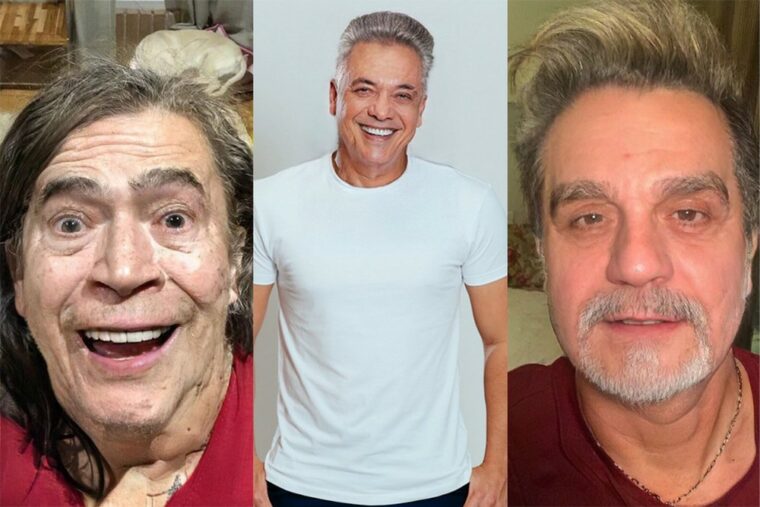
Before the list, the warning that makes all the difference: the Apps that age photos are entertainment filters.. They apply wrinkles, blemishes, and gray hair to the image using artificial intelligence, following an average aging pattern. It's not a prediction: nobody can know what you'll look like in 40 years, because that depends on genetics, health, sun exposure, sleep, and habits. The result is a montage to laugh at and share.
Many people comment that the aged photo "looks just like the father" or "just like the grandmother." This makes sense, and the explanation is simple: the filter exaggerates features that already exist on the face and are usually inherited from family. It's a statistical coincidence, not an app precision.
We tested several and selected the 4 best to show how they work, how much they cost, and where they are available today. Check them out below.
FaceApp
Starting with the most popular one. The FaceApp It became a hit on social media with its face filters, and the age filter is the flagship. Simply select the photo, slide the bottom menu to the option. Age and choose between child, youth, adult, and elderly — "elderly" is the name the app itself uses, so don't be alarmed.
The result appears instantly and can be saved or shared directly on social media. The app also offers hair color, beard color, makeup, and background changes. What it is: An AI-powered photo editor; the aged version is a simulation, not a projection of your future. Free for android It is iphone, with an optional subscription for "Pro" features.
FaceLab
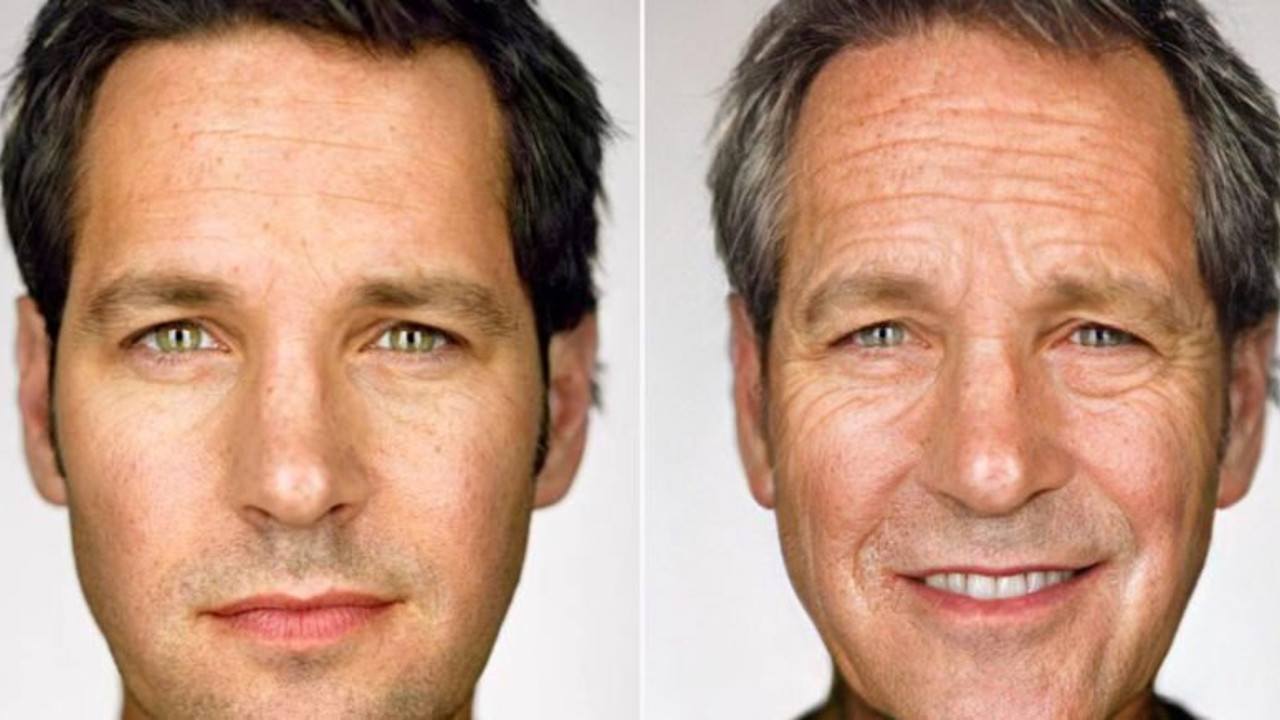
O FaceLab Today it's the most complete alternative on Android. Besides the age filter, it lets you edit hair, beard, baldness, and hairstyle, resulting in much funnier edits than just adding wrinkles.
The process is the same as always: choose the photo, apply the filter, save or share. What it is: An image editor; none of the generated versions have predictive value. Free for android It is iphone, with in-app purchases.
Make me old
If you just want the fun part, without a menu full of options, the Make me old It solves the problem. It does just one thing: select a photo from your gallery or take one with the camera, and the app applies the aging effect in a few seconds.
Didn't like it? Just recreate it with another image. Then, save it to your gallery or send it to your friends. What it is: A simple aging filter, for fun. Free for android.
Aging Booth
O Aging Booth It's a classic of the genre and works exclusively with aging. You choose the photo, adjust the face contour, and tap start. A fun feature: to undo the effect, simply shake the device and the image returns to its original state.
Please note availability: It was removed from the Play Store and today it only exists for iphone, For free. Android users can use Make me Old or FaceLab, which do the same thing. What it is: An entertainment filter, without any scientific basis.
It's worth mentioning two more names that appear frequently in searches and that also remained exclusive to the iPhone: the oldify, which is paid and allows you to choose the exact age of the effect, and the HourFace: 3D Aging Photo, It's a free app that works with a 3D effect. If you searched for it on Android and couldn't find it, that's why.
Other apps you might like:
How to choose between the options
- It works without internet. Editors who process photos on their own device work offline. Those that rely on a server do not—and send your photo externally.
- Resolution of the exported file. Some reduce the image size when exporting without a signature. If the photo is for printing, this is a crucial factor.
- Watermark on the free version. This is the most common trick: the app lets you edit for free, but then stamps the logo on it when you save. Check this before investing your time.
- App weight. Full-featured editors can exceed 300 MB. On devices with limited storage, a lightweight app will handle the basics without crashing.
What these apps don't do
This is the part that almost no list mentions, and it's precisely what separates expectation from result.
- They don't remove watermarks from third-party photos. Besides not working properly, using the image without a license is a copyright violation.
- They don't recover details that don't exist in the file. Increasing the resolution reconstructs pixels by estimation—it doesn't reveal lost information.
- No app can see through clothes or walls. What exists is simulation — a generated image, not a captured image.
- Recovering deleted photos only works on images that haven't been overwritten yet, and the chances of success decrease with each use of the device.
Frequently Asked Questions
Does the photo lose quality when edited?
Each export recompresses the file. Edit once and save, instead of saving after each adjustment.
Which format should I save it in?
JPEG for general use, PNG when there is transparency or text, and the original format when archiving.
Will my photos go to the cloud?
It depends on the app. Those that do everything on the device work offline; those that use a server send the image externally.
Is the premium version worth paying for?
It's worthwhile if you edit frequently and need high-resolution export or to remove the watermark. For occasional use, the free version is sufficient.
Is it possible to recover a deleted photo?
If there's a backup in Google Photos or iCloud, yes. Without a backup, only if the space hasn't been overwritten—and that chance drops quickly.
How to use it in practice
- Crop with the purpose of taking into account where the photo will end up. Square and vertical 4:5 for social media, 16:9 for screen. Crop after exporting and recompress again.
- Adjust the light before applying the filter. Exposure, contrast, and shadows first; filter later. In reverse order, the filter amplifies the flaw.
- Work on a copy. Duplicate the image before editing. Good apps do this automatically, but double-checking prevents losing the original.
- Save only once. Each export process recompresses the file. Make all the necessary adjustments and export at the end.
What goes wrong most often?
- Saving after each adjustment and watching the image lose sharpness without understanding why.
- Granting access to all photos when the app only needs one.
- Increasing the resolution in the hope of revealing detail — the program estimates pixels, it doesn't retrieve information.
- Send a photo of a document or a child to an editor who processes it in the cloud.
Before installing: what's already on the device
The phone's built-in gallery editor already handles cropping, light adjustment, object removal, and perspective correction in recent versions of Android and iPhone. For quick adjustments, it solves the problem without installing anything or sending the image externally.
How the model constructs the aged face
The app doesn't draw wrinkles manually. It starts by detecting reference points on the face: the corners of the eyes, the eyebrow line, the contour of the nose, the edges of the mouth, and the chin. This map tells the program where each part of the face is located.
With the map ready, the trained network comes into play. It has learned, from a huge set of photos of people of various ages, how skin texture changes, where sagging usually appears, how eyelids droop, and how hair loses pigment. The result is the application of these learned textures over the geometry of your face.
That's why the effect seems convincing at first glance and fragile in detail. The skin gains plausible pores, blemishes, and wrinkles, but none of that came from his own skin. It came from the average of thousands of faces the model saw during training.
Photo requirements that yield a believable result.
The quality of the output depends much more on the input image than on the chosen application. A photo that meets the conditions below tends to produce consistent aging in any app in this category.
- Face to face, looking at the camera, with both eyes visible.
- Diffuse light, such as open shade, a cloudy day, or an indirect window.
- No sunglasses and no hat., Because the eyes and forehead are the areas that most clearly show signs of aging.
- One face per photo, occupying a large part of the frame.
- Decent resolution, with the face clearly visible when zoomed in.
Profile or three-quarter photos fail because half the reference points disappear. The model infers where the hidden eye is and distorts the shape of the face. Aging then comes accompanied by a deformation that has nothing to do with age.
Harsh light is another enemy. Direct sunlight, a flash of light, or a single lamp creates harsh shadows around the nose and under the eyes. The model interprets this shadow as an existing furrow and reinforces the line over it. The face ends up looking unevenly aged, with one half more weathered than the other.
Why does the result come out generic and plasticky?
Every model of this type pulls the result toward the average of the training set. The more uncertain it is about a detail, the more it resorts to the pattern it has seen most frequently. Hence the feeling that the aging person has become a different person, and that all their friends are getting the same type of wrinkles.
The applied texture is also often too uniform. Real skin ages unevenly, with areas more exposed to the sun showing much more signs of aging than the rest. The simulation distributes the effect more evenly, and it is this uniformity that gives the mask-like appearance.
It's important to understand the limits of what the technique alters. The program manipulates skin, eyebrows, hair, and, in some cases, the apparent volume of the cheeks. It doesn't change bone structure, shorten the spine, alter posture, or modify body proportions. Real aging involves all of that, and none of it appears in the simulation.
Group photos confuse the detector. Small faces, partially overlapping faces, or faces in different focal planes cause the program to mix up neighboring regions.
Resolution, filter, and what's left of the original image.
A photo that has already been subjected to a beauty filter is a special case. These filters smooth pores, slim the chin, and enlarge the eyes. The aging app receives this treated face as if it were real and ages the filter, not you. The result is a smooth face with wrinkles on top, contradictory and artificial.
Taking a screenshot makes everything worse. The screenshot records what was being displayed, in screen resolution and with new compression applied on top of the existing image compression. Fine skin details disappear, and it's precisely this detail that the model uses for their work.
Digital zoom has a similar effect. Zooming in before taking the photo doesn't create new information: the device crops the center of the sensor and enlarges it through interpolation. The face appears larger in the frame but with less detail.
Faces where the model learned poorly
Accuracy suffers in faces that are underrepresented in the training set. Dark skin tones often receive texture and contrast calibrated for light skin tones, resulting in blemishes and undue lightening. Children are given adult features because the model has few examples of child progression. Elderly people are given exaggerated features, as the program applies a fixed age jump to a face that has no more room to age.
There is no adjustment that can correct this imbalance, because it stems from the dataset. Switching apps changes the style, not the problem.
Simulation is not prediction.
The face that appears on the screen is a statistical average dressed with your facial geometry. It is not a portrait of your future.
What determines your appearance in thirty years is accumulated sun exposure, sleep, tobacco, alcohol, weight, diet, and above all, genetics. None of these variables are factored into the calculation because the app only has an image and no data about your life.
Treating the outcome as something fun keeps expectations in the right place. Treating it as a prediction only generates frustration with an image that could never have been correctly predicted.