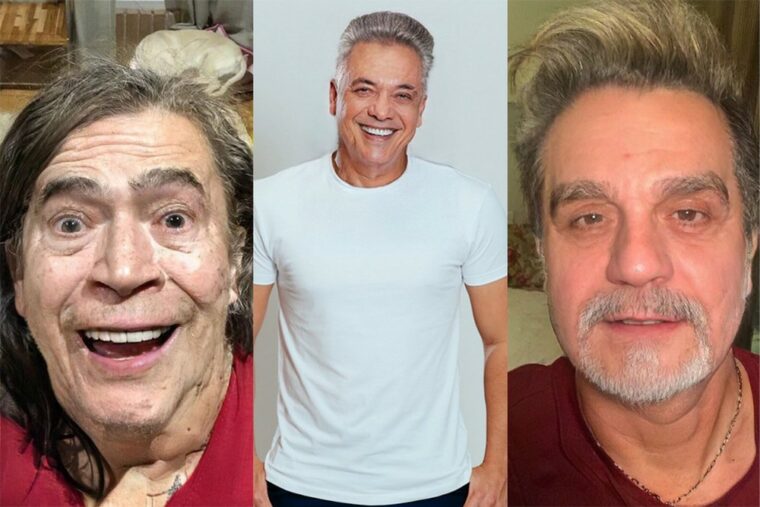
Did you know that there are apps that can make your face look younger in photos? Apps that adjust your apparent age have been among the most downloaded in app stores for years, whether out of curiosity or just to pass the time.
The prank usually generates a lot of laughs when you apply the effect to your photo and a friend's. And, if the aged version is already known to everyone, the reverse works just as well: you upload the image to the app and it returns a visibly younger face.
Below are three options we checked on the Brazilian Google Play and App Store, with what each one does and how much it actually costs.
3 apps to make you look younger in photos
All three are available for Android and iPhone and can be installed for free. The difference lies in what comes after the download.
FaceApp
Let's start with the most famous one. FaceApp has dozens of filters, and the rejuvenation filter is one of them—probably the most used after the aging effect.
After installing, choose a photo. Pay attention to the lighting: the result is much better when the face is facing forward and occupies a good portion of the frame. Then, open the "Age" option and tap "Young". The processing takes only a few seconds.
You can also combine filters and see, for example, what a younger version would look like with a beard or a different haircut. It's time to let your imagination run wild.
Where to download: at Google Play and in app store, For free. The Play page indicates in-app purchases and it doesn't display any ads. Several filters only open in FaceApp PRO, which appears on the App Store starting at R$ 25.00, with the annual plan at R$ 119.90.
snapchat
That's right, you read it correctly: Snapchat, considered dead by many, is still going strong. And it was a pioneer in this type of effect — the age lenses went viral on social media before most apps of the genre existed.
The advantage here is the video: instead of a static photo, the effect follows the face in motion, which gives a much more fun result for stories.
Using it is simple: open the app's camera, tap the lens icon, and search for the desired effect. Keep in mind that the lens catalog changes constantly, so the lens available last month may be discontinued—and new ones may take its place.
Where to download: Google Play and the App Store, free of charge. The Play Store listing indicates that the app contains advertisements and has in-app purchases. Basic lenses are free; the optional Snapchat+ subscription unlocks extra features.
facetune
Facetune follows a different logic. While previous versions apply a pre-made filter, here you edit every detail manually, just like in a professional editor.
There are tools for facial contouring, chin and nose reshaping, teeth whitening, and blemish removal. For a rejuvenating effect, the most useful is smoothing: it reduces fine lines and wrinkles, giving the impression of a more rested face.
Since the package is large, it ends up being useful for general editing. Brightness, contrast, and shadows help make any photo more presentable before publishing.
Where to download: Google Play and App Store. Pay attention to this point, because many people get confused: The download is free, but Facetune works on a subscription basis.. The Play Store page indicates that the app contains advertisements and has in-app purchases, The plans listed on the App Store range from R$ 18.90 to R$ 399.90, depending on the duration. Without a plan, many features are locked.
How to achieve a natural result
Any of the three will deliver a better result if you follow a few basic rules:
- Use photos with good lighting, preferably natural, and without strong shadows on one side.
- Choose images where the face is clear and facing forward, without sunglasses or a hat.
- Go easy on the smoothing: skin with no texture at all is the biggest giveaway of editing.
- Before accepting a free trial, check the price and renewal date directly with the store.
A reminder about the filters.
We live in the age of filters, and that has a fun side. But it also has another side: many people end up comparing themselves to an edited version of themselves, or to other people's versions, and come out of the game worse than they went in.
It's important to remember that nobody is an app or a filter. We all have our imperfections — and, more than that, it's those imperfections that make us recognizable.
Availability and prices checked in Brazilian stores on August 1, 2026. Found any outdated information? Write to contato@moblander.com.
Criteria that make a difference in the choice
- It works without internet. Editors who process photos on their own device work offline. Those that rely on a server do not—and send your photo externally.
- Resolution of the exported file. Some reduce the image size when exporting without a signature. If the photo is for printing, this is a crucial factor.
- Watermark on the free version. This is the most common trick: the app lets you edit for free, but then stamps the logo on it when you save. Check this before investing your time.
- App weight. Full-featured editors can exceed 300 MB. On devices with limited storage, a lightweight app will handle the basics without crashing.
What these apps don't do
It's important to know what's beyond the reach of this category—that's what avoids frustration and, most importantly, prevents falling for those who promise the impossible.
- They don't remove watermarks from third-party photos. Besides not working properly, using the image without a license is a copyright violation.
- Recovering deleted photos only works on images that haven't been overwritten yet, and the chances of success decrease with each use of the device.
- They don't recover details that don't exist in the file. Increasing the resolution reconstructs pixels by estimation—it doesn't reveal lost information.
- Beauty filters alter the image; they don't alter the person. It's important to remember this when comparing the result to an unedited photo.
Frequently Asked Questions
Can I edit without a watermark for free?
Yes, in several applications, but with limited features. Check beforehand by saving a test image.
Is a free editor safe?
Check the permissions requested. A photo editor does not need access to contacts, messages, or microphone.
Does the photo lose quality when edited?
Each export recompresses the file. Edit once and save, instead of saving after each adjustment.
Which format should I save it in?
JPEG for general use, PNG when there is transparency or text, and the original format when archiving.
Will my photos go to the cloud?
It depends on the app. Those that do everything on the device work offline; those that use a server send the image externally.
What to do, in order.
- Crop with the purpose of taking into account where the photo will end up. Square and vertical 4:5 for social media, 16:9 for screen. Crop after exporting and recompress again.
- Save only once. Each export process recompresses the file. Make all the necessary adjustments and export at the end.
- Adjust the light before applying the filter. Exposure, contrast, and shadows first; filter later. In reverse order, the filter amplifies the flaw.
- Export at the highest quality available. If you're going to print, look for the high-resolution export option — some free versions reduce the resolution without warning.
Where most people slip
- Saving after each adjustment and watching the image lose sharpness without understanding why.
- Send a photo of a document or a child to an editor who processes it in the cloud.
- Granting access to all photos when the app only needs one.
- Discovering the watermark only when exporting, after half an hour of editing.
Before installing: what's already on the device
The phone's built-in gallery editor already handles cropping, light adjustment, object removal, and perspective correction in recent versions of Android and iPhone. For quick adjustments, it solves the problem without installing anything or sending the image externally.